
EnrichEazy is a separate workspace from HubSpot. Sign in at app.enricheazy.com, then connect your HubSpot account. There is no live two-way sync. You pull a HubSpot list when you want to enrich it, and you push results when a batch is done.
With this connection you can:
- Read HubSpot contact lists into EnrichEazy (From CRM).
- Fill blank HubSpot email and phone only. Values that are already set stay as they are.
- Update name, job title, company, LinkedIn URL, EnrichEazy Score, and EnrichEazy Source on each push.
Install the app
You can start from the HubSpot Marketplace listing or from EnrichEazy.
From the HubSpot Marketplace
- Open the EnrichEazy listing and click Install.
- Sign in to EnrichEazy with your workspace email (EnrichEazy login is required).
- Follow Connect HubSpot below to approve access.
From EnrichEazy
- Sign in at app.enricheazy.com. New teams can create a workspace first.
- Go to Settings → Integrations.
- On the HubSpot card, click Connect HubSpot. Only the workspace owner can connect.
- Choose the HubSpot account you want to use, then click Choose Account.
- Review the requested access. EnrichEazy asks to read and write contacts, read and write contact properties, and read lists.
- Click Connect app. You return to Settings with HubSpot marked Connected.
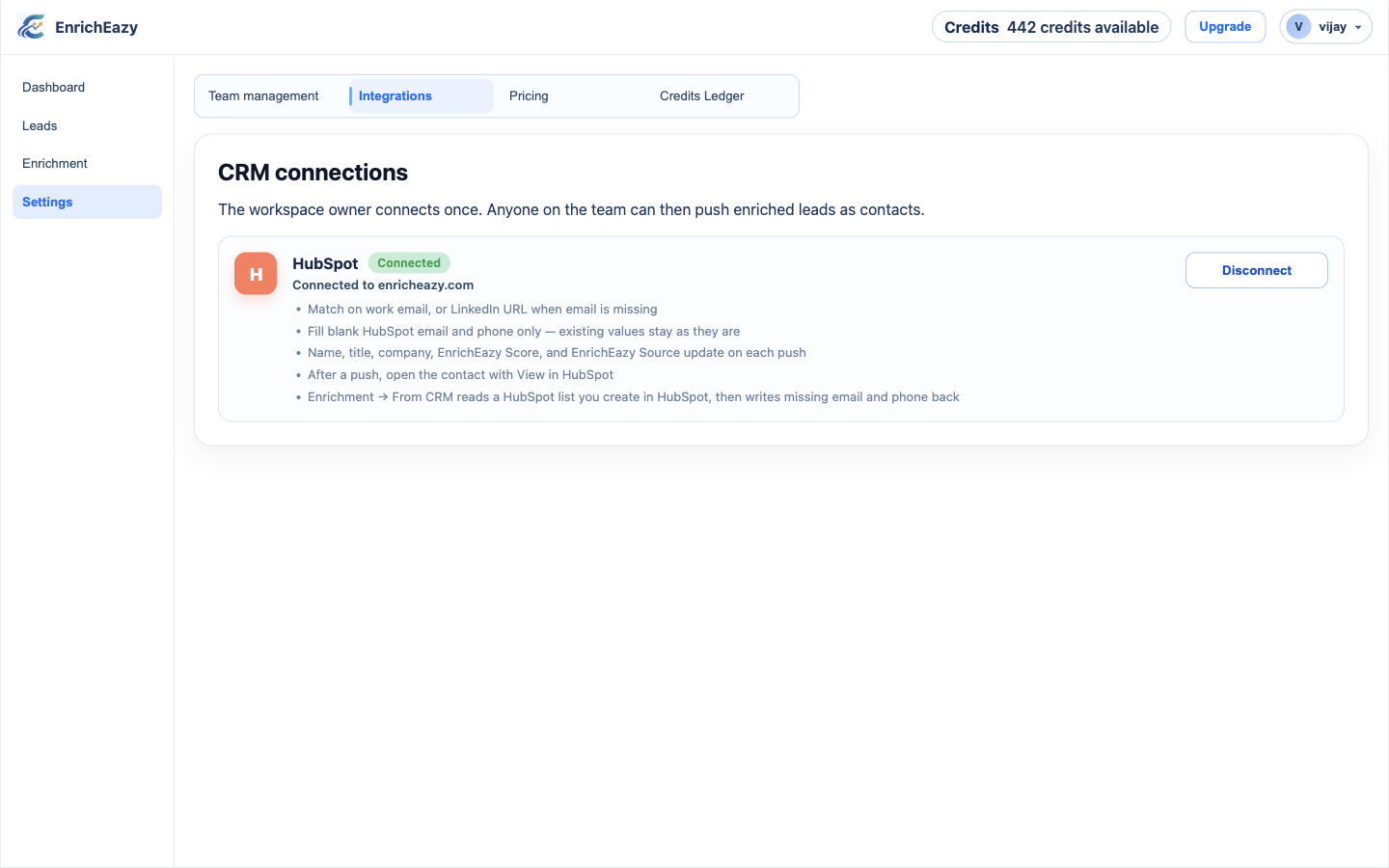
If lists are not readable after an older connect, click Reconnect HubSpot and approve list access again. Push still works on the current connection.
Configure the app
There is no field-mapping screen and no sync-direction toggle. EnrichEazy maps HubSpot fields automatically:
- Match: work email, or LinkedIn URL when email is missing.
- Email and phone: written only when the HubSpot contact field is blank.
- Updated on each push: first name, last name, job title, company, LinkedIn
URL, EnrichEazy Score (
enricheazy_score), and EnrichEazy Source (enricheazy_source).
Anyone on the EnrichEazy team can push after the owner connects. Credits: 1 per work email found, 10 per phone found. Unused contact credits are refunded when a field is not found. LinkedIn career enrichment does not use contact credits.
Use the app
Enrich a HubSpot list (From CRM)
- In HubSpot, create or open a contact list.
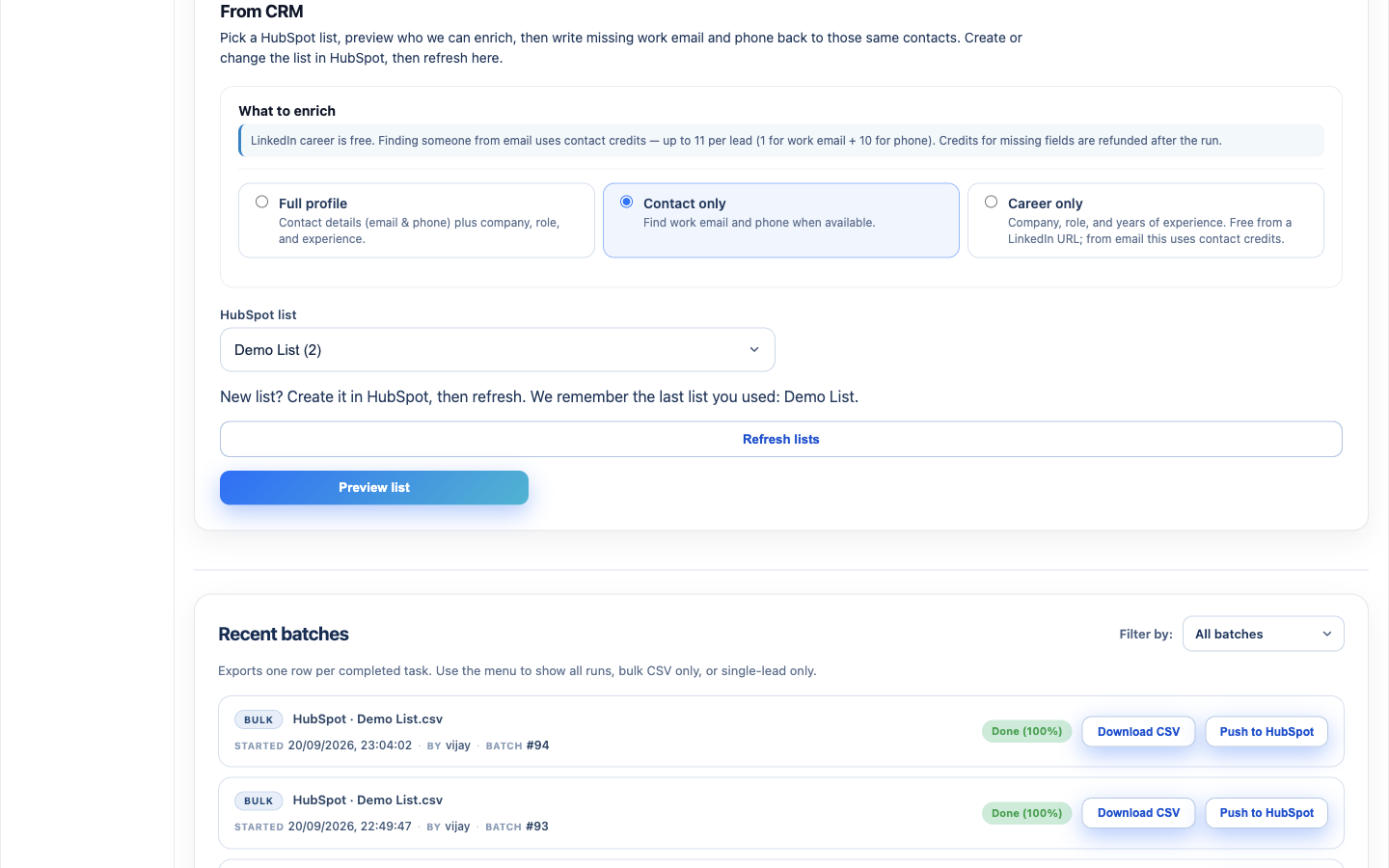
- In EnrichEazy, go to Enrichment → From CRM.
- Choose what to enrich (Contact only, Full profile, or Career only).
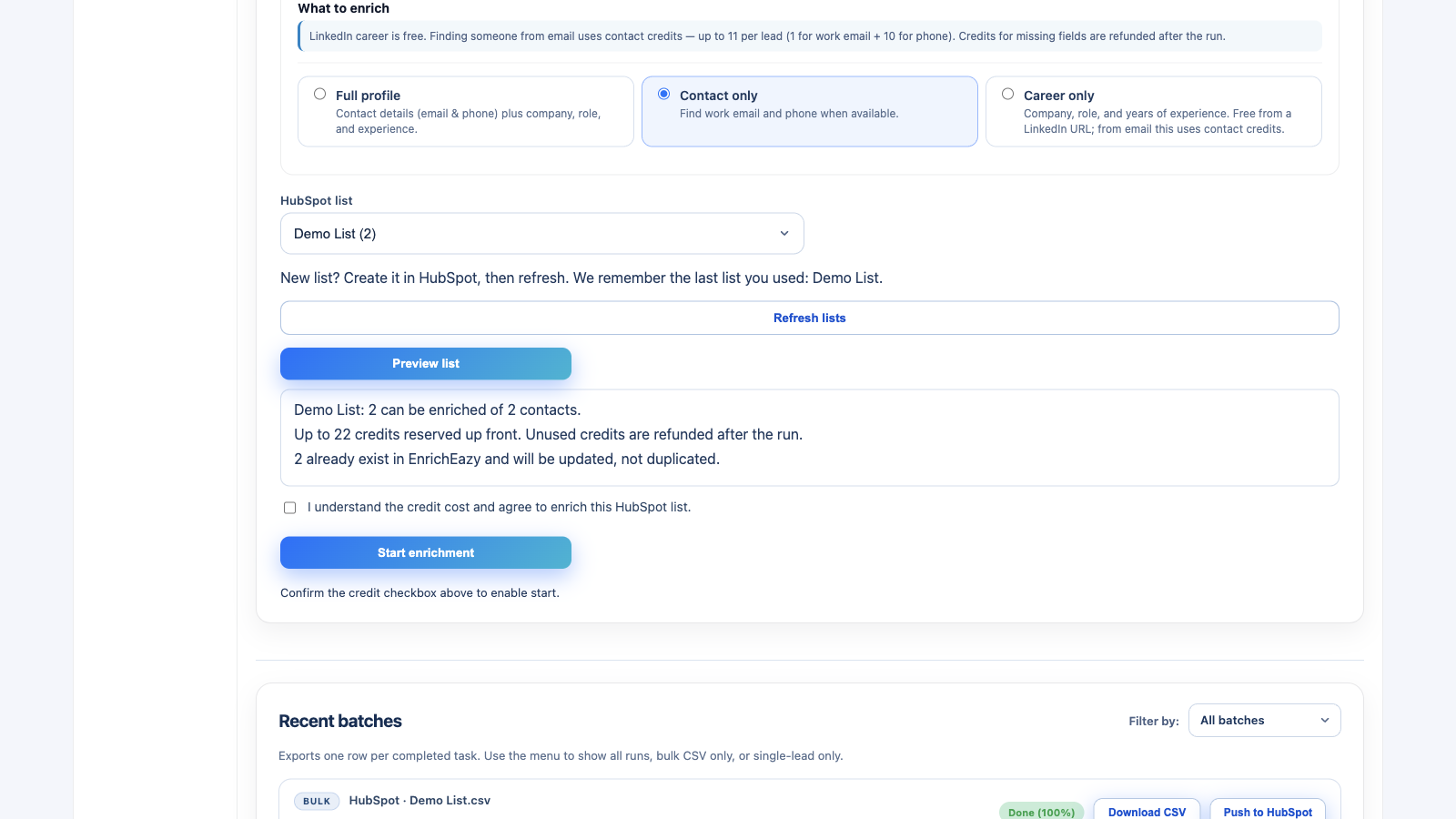
- Select the HubSpot list. Click Refresh lists if you just created it.
- Click Preview list, confirm the credit checkbox, then Start enrichment.
Push enriched contacts to HubSpot
- Wait until the HubSpot list batch shows Done.
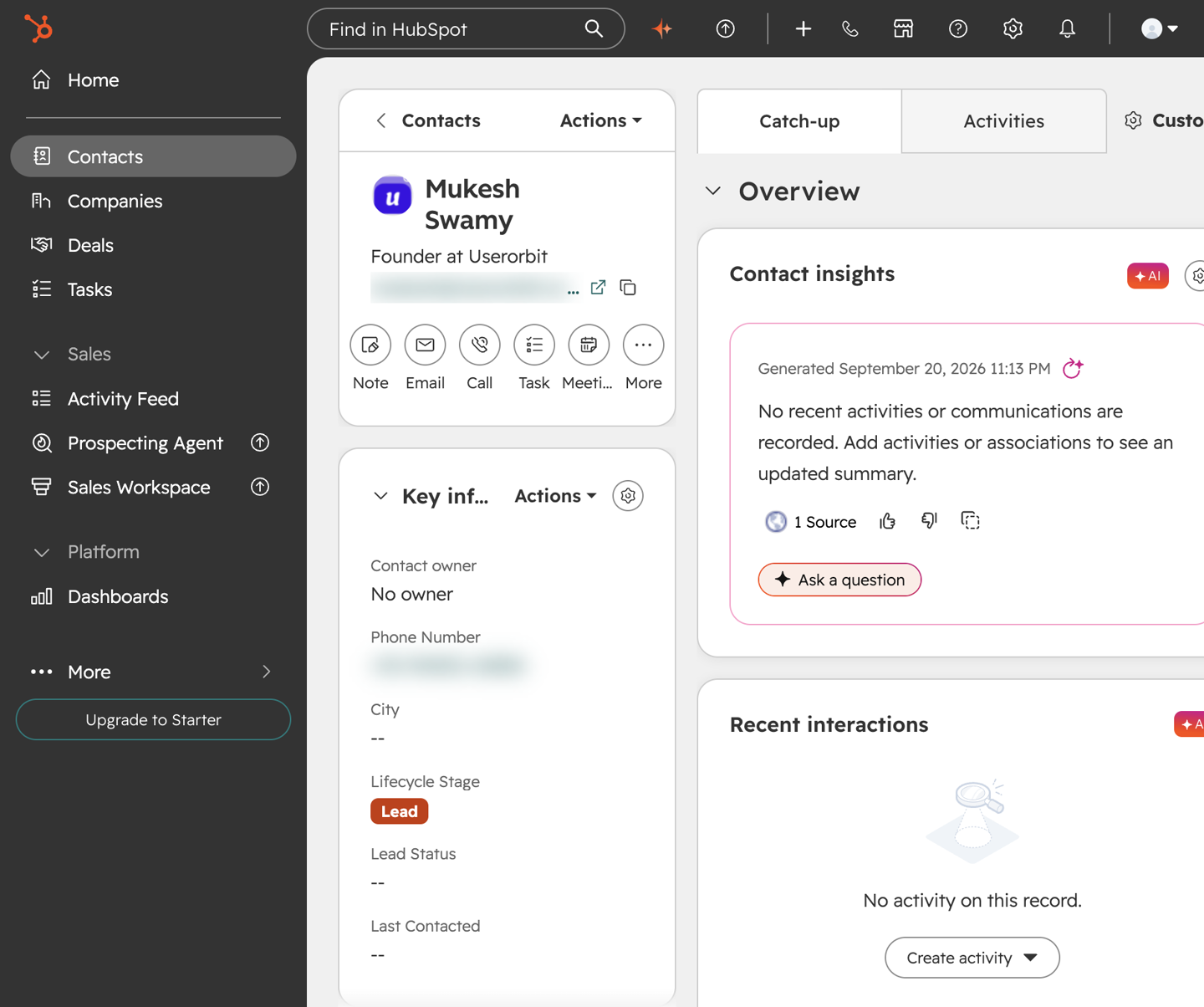
- Click Push to HubSpot on that batch (or on a single lead).
- Open View in HubSpot to confirm the contact.
Disconnect the app
Disconnecting stops EnrichEazy from reading HubSpot lists and from pushing contacts. Contacts already written to HubSpot stay in HubSpot. EnrichEazy leads stay in EnrichEazy. Custom properties already created on HubSpot contacts are not deleted.
- Sign in to EnrichEazy.
- Go to Settings → Integrations.
- On the HubSpot card, click Disconnect.
Only the workspace owner can disconnect. Reconnect later with Connect HubSpot.
Uninstall the app
Uninstalling in HubSpot revokes EnrichEazy’s OAuth access. EnrichEazy then shows HubSpot as not connected. HubSpot contacts, lists, and property values already saved in HubSpot are not deleted.
- In HubSpot, open Settings.
- Go to Integrations → Connected apps.
- Find EnrichEazy, click Actions → Uninstall, then confirm.
HubSpot’s uninstall steps are also in this HubSpot Knowledge Base article .
Help
Questions about this connection: support@enricheazy.com.